
atwds
Your Phone Says Storage Is Full? Free Up Space Without Deleting Your Photos
You go to take a photo and your phone stops you: “Storage almost full.” Before you start deleting precious photos in a panic — stop. You can usually free up gigabytes without losing a single picture. Here’s how, in the order worth doing it.
Step 1: Find Out What’s Actually Eating Your Space
Don’t guess. Your phone will show you exactly where the space went.
On Android: Open Settings, then Storage. You’ll see a breakdown — usually Photos, Apps, and System take the biggest chunks.
On iPhone: Open Settings, tap General, then iPhone Storage. Wait a few seconds for the coloured bar to load. You’ll see the same kind of breakdown, plus a list of your apps sorted by size, biggest first.
Usually one or two things are responsible: photos and videos, a chat app full of forwarded videos, or apps you haven’t opened in months.
Step 2: Back Up Your Photos First — Then Let the Phone Remove Its Own Copies
This is the single biggest space-saver, and it’s the step people get wrong. There are two different kinds of “delete,” and only one of them is safe:
- Deleting a photo from your photo library can delete it everywhere, including your cloud backup. Don’t do that to free up space.
- Removing the copy stored on your phone after it’s safely backed up keeps the photo in your cloud library, where you can still see it, share it, and download it again any time. That’s the safe one.
On Android with Google Photos:
- Open the Google Photos app and check that backup is finished. Don’t just trust the thumbnails — open photos.google.com on a computer or another device and make sure your recent photos are actually there. Videos take longer to back up, so give them time, ideally on Wi-Fi.
- Once backup is confirmed, tap your profile picture in Google Photos and choose Free up space on this device. It will tell you how much space it can free, then remove only the local copies of photos that are already safely backed up.
- Your photos still appear in the Google Photos app. Tapping one downloads it again on demand — you just need an internet connection to see the full version.
One note: photos and videos less than 30 days old may be kept on your phone even after this step. That’s normal.
On iPhone with iCloud Photos: If you use iCloud Photos, go to Settings, tap your name, then iCloud, then Photos, and choose Optimize iPhone Storage. Your phone keeps smaller versions and stores the full originals in iCloud. Just like Android, don’t delete photos from the library itself to free space — that deletes them from iCloud too.
Step 3: Clear the Junk — Safely, With Built-In Tools
On Android: Open the Files by Google app (it’s called Files on many phones) and tap the Clean tab. It suggests things that are safe to remove: junk files (temporary files apps leave behind), old downloads, large files, and duplicates. Review each suggestion before confirming — the app shows you what it’s about to remove, so nothing disappears blindly. Deleted files sit in the trash for 30 days, so you can undo a mistake.
On iPhone: On that same Settings → General → iPhone Storage screen, look for Offload Unused Apps and turn it on. Offloading removes an app you haven’t used in a while but keeps its documents and data, so when you tap the app icon again it downloads and picks up right where you left off. You can also offload a single app by tapping it in the list and choosing Offload App. This is different from deleting: deleting removes the app and its data.
Step 4: Tackle the Usual Suspects
A few more quick wins, in order of payoff:
- Old videos and forwarded clips. Chat apps collect videos people send you, and those add up fast. Look through your biggest chat threads and delete the videos you’ve already watched — or the ones you never asked for in the first place.
- Your Downloads folder. Files you saved once and forgot — attachments, PDFs, installers — often sit there for years. Open Downloads, keep what you still need, and clear the rest.
- Downloaded shows and music. If you’ve already watched or listened, delete the downloads — you can always get them again from the app.
- Empty the trash. Deleted photos and files often sit in a Trash or Recently Deleted folder for up to 30 days and still count against your storage. Empty it manually to get the space back right away.
What NOT to Do
- Don’t install a random “phone cleaner” or “booster” app. Many are full of ads, and some delete things you wanted to keep. Your phone’s built-in tools do the job safely.
- Don’t pay for extra cloud storage just yet. Extra storage buys room in the cloud, not on your phone. Clean up first.
- Don’t factory-reset your phone in frustration. That wipes everything, and the steps above solve the problem for almost everyone.
The Short Version
Find the culprit in Settings, back up your photos and let the phone remove its own copies, clear the junk with the built-in tools, and empty the trash. Ten minutes of tidying usually buys you months of breathing room — and your photos stay safe the whole time.
Get the Free Guide
Want more plain-English help like this? Grab the free guide AI Made Simple for Real Life, plus the bonus 5-Minute PC Tune-Up Checklist — both free when you sign up below.
It’s free, it’s plain English, and it takes a minute to sign up.
5 Simple Tech Gifts Seniors Will Actually Use (2026 Gift Guide)

Shopping for an older parent, grandparent, or friend? The trick with tech gifts isn’t finding the fanciest gadget — it’s finding something simple enough that they’ll actually use it after the wrapping paper is gone. Every pick below passes the same test: easy to set up, easy to use, and it fixes a real everyday annoyance.
Prices are in Canadian dollars, and they move around — Amazon discounts these often, so check the link for today’s price.
1. Alexa Tablet 8 — the big gift (C$299.99)
If you’re buying one “wow” gift this year, make it this one. Amazon’s new Alexa Tablet 8 (launched October 2026) is an 8.7-inch tablet with the Alexa+ voice assistant built in — and for the first time on an Amazon tablet, the full Google Play Store works, so Gmail, YouTube, and Netflix install normally.
Why seniors love it: a big readable screen for video calls with the grandkids, “Alexa, what’s the weather?” without touching a thing, and Kindle books in large print. At 329 grams it’s light enough to hold one-handed.
Alexa Tablet 8
2. Echo Dot (5th Gen) — the kitchen helper (lists around C$105, often on sale under C$60)
A little speaker that answers to “Alexa.” No screen, no buttons to learn — you just talk to it. “Alexa, set a timer for 20 minutes.” “Alexa, play the oldies station.” “Alexa, call Mary.” It works as a kitchen timer, an alarm clock, and a news reader, and there’s a physical microphone-off button for privacy.
Don’t pay full price if you can avoid it — Amazon discounts this one constantly. It dropped to C$55 during Prime Big Deal Days in early October.
Echo Dot (5th Gen)
3. Fire TV Stick HD — the simplest way to stream (lists around C$70, often on sale under C$30)
If they have a TV plus a Netflix or Prime subscription they never use because “it’s too complicated,” this fixes it. It plugs into the TV’s HDMI port, and the voice remote means they just hold a button and say “open Netflix.” Big icons on screen, no typing, no fiddling with inputs.
These go on deep sale all the time — it was C$23 during Amazon’s device sale in late September — so check the price before you buy.
Fire TV Stick HD
4. TP-Link RE315 Wi-Fi Extender — fix the dead zone (usually in the C$30s)
Does their Wi-Fi die in the back bedroom — exactly where they like to video-call the family? A range extender plugs into a wall outlet halfway between the router and the dead zone and rebroadcasts the signal. No new router, no technician visit. The RE315 covers up to about 1,500 square feet and sets up through a phone app in around ten minutes.
TP-Link RE315 Wi-Fi Extender
5. TP-Link UB500 Bluetooth Dongle — give an old PC Bluetooth (usually under C$20)
Know a senior whose desktop computer predates Bluetooth? This tiny USB stick — smaller than a thumbnail — adds it in seconds. Plug it in and suddenly wireless headphones, a wireless mouse, or a Bluetooth speaker all work. It’s plug-and-play on Windows 10 and 11 with no driver hunting. The classic stocking stuffer for the person who “doesn’t need anything.”
TP-Link UB500 Bluetooth Adapter
The real gift: offer to set it up
Here’s the secret to tech gifts for older adults: the gift isn’t the gadget, it’s the setup. Each of these takes 10–20 minutes to configure — the Wi-Fi password typed in, accounts signed in, the one app they actually want front and center. Do that part for them (in person, or patiently over the phone), and the gift gets used every day instead of gathering dust in a drawer.
📘 Free Guide: The Ultimate Tech Guide — AI Made Simple for Real Life
Plain-English tech help, no jargon. Get instant access to the free guide.
As an Amazon Associate I earn from qualifying purchases.
Alexa Tablet First Steps for New Owners

Just got one of Amazon’s new Alexa tablets? You’re not alone — and you’re smart to set it up right from the start. This is a simple first-steps checklist for new owners: the handful of things worth doing in the first hour, in the order worth doing them.
This is based on Amazon’s own documentation and launch information (announced October 8, 2026). No hype, no guesswork — just what to do with a new tablet in plain English.
Step 1: Charge It, Connect Wi-Fi, Update First
1. Plug it in and charge it fully before doing anything else. A fresh tablet often arrives half-charged. Let it reach 100%.
2. Connect to your Wi-Fi. When you first power on, the tablet walks you through setup — pick your home Wi-Fi network and type the password carefully. Wi-Fi passwords are case-sensitive, so slow down and double-check each letter.
3. Install system updates before anything else. Once you’re online, go to Settings and look for System Update (or Software Update). Install whatever it finds, then restart if it asks. Updates fix bugs and security holes — everything runs smoother afterward, and some features (like Alexa+) work best on the latest software.
Step 2: Sign In — Amazon First, Then Google
1. Sign into your Amazon account. The tablet needs your Amazon login for the app store, Kindle books, Prime Video, and Alexa+ to work. Use the same email and password as your regular Amazon account.
2. Sign into your Google account. This is new for Amazon tablets: these run real Android with the full Google Play Store. Add your Google account under Settings → Accounts so you can install Gmail, YouTube, Netflix, Google Docs, and everything else from the Play Store.
3. If the tablet offers to copy apps and data from an old device, say yes. During setup it may ask whether to copy from an old phone or tablet. Accepting this saves you from re-downloading everything by hand.
Step 3: Set a Screen-Lock PIN Right Away
Do this in the first ten minutes, before you load anything personal onto the tablet.
Go to Settings → Security → Screen lock and set a PIN (a fingerprint also works on the 11 and 12 Pro models). A tablet carries your email, photos, shopping account, and possibly banking — a PIN takes thirty seconds and is the single most important security step on any new device.
Step 4: Try Alexa+ — the Assistant Built Into Your Tablet
Alexa+ (Amazon’s newer, smarter Alexa) is built right into the tablet. Two ways to talk to it:
- Say “Alexa” out loud, just like an Echo speaker.
- Tap the “Ask Alexa” button on screen (you can also drag in from the bottom-right corner of the screen).
Try these three things to get the feel of it:
- Ask one question. Try: “Alexa, what’s the weather this afternoon?”
- Ask it to do something. Try: “Alexa, add ‘call the doctor’ to my to-do list” — or if you have smart-home devices, “Alexa, turn off the living room lamp.”
- Try a Live session. Tap the Alexa icon to start a continuous, hands-free conversation — you don’t have to repeat “Alexa” between questions. It feels like a real back-and-forth chat.
That short workout tells you more about what Alexa+ can do than any review.
Step 5: Understand On-Screen Intelligence (the Privacy One)
This is the setting worth knowing about before anything else. On-Screen Intelligence lets Alexa read what’s on your screen and help with it — for example, you’re looking at a recipe and ask Alexa to pull out the key steps, or you’re looking at a game schedule and ask her to add every date to your calendar.
Three important facts, straight from Amazon:
- It’s off by default. It does nothing until you deliberately switch it on.
- Turning it on is your choice in Settings. You can also turn it off again at any time.
- There’s a visual indicator. When Alexa can see your screen, a glowing blue halo appears around the screen edges so you always know.
The sensible approach: leave it off until you hit a moment where you actually want Alexa to look at your screen. You lose nothing by waiting, and you stay in control of what the tablet’s AI can see.
Step 6: Know Your Two App Stores
Because the tablet has the full Google Play Store and Amazon’s own store, it helps to know where things live:
Get these from Google Play: YouTube, Gmail, Netflix, Google Docs, Google Photos, and most of the apps you already use on an Android phone.
Get these from Amazon: Kindle (books), Prime Video, Audible (audiobooks), Amazon Music, and Luna (games).
One tip: some apps exist in both stores. If you install from Google Play, updates come through Google — so just pick one store per app and stick with it.
Still Deciding? The Three Alexa Tablets
Reading this before you buy? Here are the three models — prices in Canadian dollars:
Alexa Tablet 8 — best value (from C$299.99)
8.7-inch aluminum tablet, light enough for one-handed reading. The cheapest way to get Alexa+ and the Play Store.
Alexa Tablet 11 — bigger screen (from C$449.99)
11-inch 2.5K display — better for video, reading, and split-screen multitasking, still with Alexa+ built in.
Alexa Tablet 12 Pro — the premium pick (from C$749.99)
12-inch display in a slim aluminum body. The flagship: biggest screen, best sound, most storage.
Step 7: Use Reading Mode for Distraction-Free Reading
Opening the Kindle app can put the tablet into a special reading mode (Amazon calls it Kindle Sanctuary). Notifications go quiet, the screen dims the blue light, and Amazon says reading battery life can stretch to about 20 hours. If you read on your tablet, this is the feature that makes it feel like a proper e-reader instead of a buzzing gadget.
That’s the whole first hour: charged, updated, signed in, locked, Alexa+ tested, privacy understood, apps installed, and ready to read. Enjoy the tablet — and if anything ever seems confusing or suspicious on it, treat it like any other device: slow down, check what it’s asking, and don’t type passwords into anything you didn’t open yourself.
📘 Free Guide: The Ultimate Tech Guide — AI Made Simple for Real Life
Plain-English tech help, no jargon. Get instant access to the free guide.
As an Amazon Associate I earn from qualifying purchases.
That Text Message Is Probably a Scam: How to Spot Fake Delivery, Toll, and Bank Texts
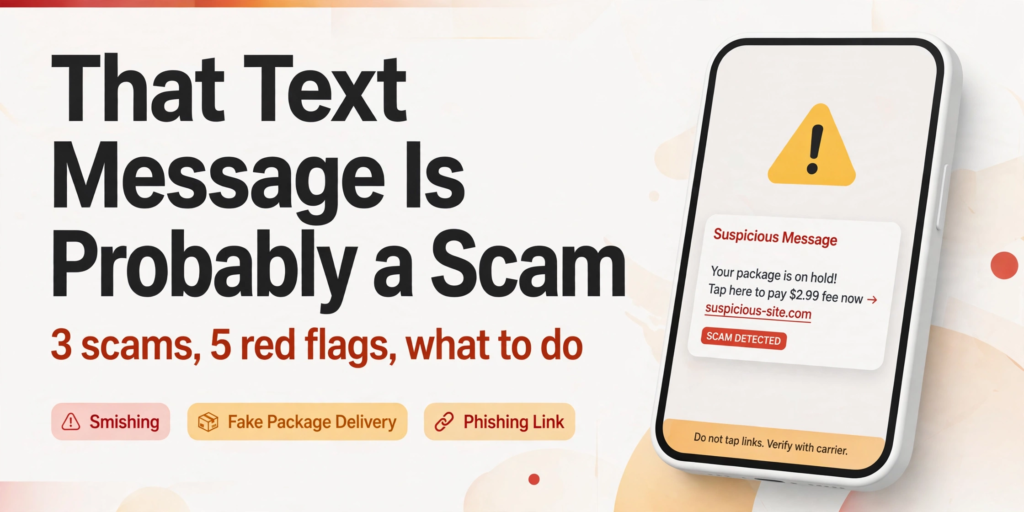
Your phone buzzes. It’s a text saying your package couldn’t be delivered, or you owe an unpaid toll, or your bank account has been locked. It looks urgent. It has a link. It wants you to act right now.
Stop. Take a breath. That message is very likely a scam.
These fake texts are called "smishing" — phishing scams sent by text message — and they’re one of the most common cons going around in 2026. The good news: once you know the pattern, they’re easy to spot. Here’s how.
The 3 Scams You’ll See Most
1. The fake delivery text. "Your package could not be delivered. Click here to reschedule." It might name a real company like Canada Post, UPS, or FedEx. Real delivery companies do not text you out of the blue asking you to click a link and pay a fee or re-enter your address.
2. The unpaid toll text. "You have an unpaid toll. Pay now or face a fine." This one is simple: toll agencies don’t collect payments by text message. If you ever owe a toll, the bill comes in the mail. A text about a toll is a scam, every time.
3. The bank or account alert. "Suspicious activity detected on your account. Verify now." Scammers love this one because it triggers panic. A real bank will never ask you to log in or confirm your password through a link in a text.
5 Red Flags That Give Them Away
- Urgency. "Pay within 2 hours or else." Scammers rush you so you don’t stop to think. Real companies don’t do that.
- A link you didn’t ask for. Any unexpected text with a link should be treated as suspicious — even if the sender name looks familiar.
- A strange web address. The link might look close to the real thing, like "canadapost-delivery.com" instead of canadapost.ca. Close doesn’t count.
- A request for personal info. No legitimate company asks for your password, card number, or Social Insurance Number by text.
- An odd sender. Scam texts often come from a random 10-digit number or an email address, not from the company’s real short code.
If a message hits even one of these, assume it’s a scam.
What to Do When One Arrives
Follow these steps, in order:
- Don’t click the link. Don’t reply, either — even "STOP." Replying tells scammers your number is real, which brings more scam texts.
- Don’t call any number in the message. If you’re worried it might be real, look up the company yourself — use the number on your bank card, the company’s official app, or a number you already know.
- Check the real source. Expecting a package? Open the delivery company’s app or the store where you ordered, and check the tracking there. Worried about your bank? Open your banking app directly — never through a text link.
- Report it. Forward the text to 7726 (it spells SPAM). This reports it to your mobile carrier, who can block similar messages. In Canada, you can also report it to the Canadian Anti-Fraud Centre. In the US, report it at ReportFraud.ftc.gov.
- Delete it. Once reported, delete the message and move on.
What If You Already Clicked?
It happens — don’t beat yourself up. Just act quickly:
- Close the page right away and don’t enter any information.
- If you typed in a password, change it immediately, starting with your email account. Turn on two-factor authentication if you haven’t already.
- If you entered banking or card details, call your bank using the number on your card and tell them what happened.
- Keep an eye on your bank and card statements for the next few weeks.
Turn On Your Phone’s Built-In Spam Filter
Your phone already has free tools that catch a lot of these before you even see them. They take about a minute to switch on.
On iPhone: Open Settings, tap Apps, then Messages, and turn on Filter Unknown Senders. Texts from numbers not in your contacts move to a separate list, and they won’t buzz your phone.
On Android: Open the Messages app, tap your profile icon, go to Messages settings, then Spam protection, and make sure Enable spam protection is turned on. Suspected spam goes into a separate Spam & blocked folder.
The One Rule to Remember
If you only remember one thing from this post, make it this: never trust a link or phone number that arrives in an unexpected text. Go to the company yourself, through an app or number you already trust. That one habit stops almost every text scam cold.
Scammers are counting on you reacting fast. You have the advantage — you just have to pause for five seconds.
Get the Free Guide
Want more plain-English help like this? Grab the free guide AI Made Simple for Real Life, plus the bonus 5-Minute PC Tune-Up Checklist — both free when you sign up below.
It’s free, it’s plain English, and it takes a minute to sign up.
AI Feels Overwhelming. It Doesn’t Have To Be.
If AI feels overwhelming, you’re not behind. You’re normal.
Every week there’s a new tool, a new headline, a new warning that AI is about to change everything. Most of it is written for tech people, by tech people — which is exactly why it feels like it isn’t meant for you.
Here’s the truth: you don’t need to understand how AI works to get something useful out of it. You just need to know what to ask it, and what not to trust it with.
That’s why I put together a free guide — AI Made Simple for Real Life — plus a bonus 5-Minute PC Tune-Up Checklist. The guide is written in plain English, with zero jargon, for people who just want AI to make everyday life a little easier. You can get it by signing up below.
But before you grab the guide, here are a few tips you can use today.
1. Be specific about what you want
Vague questions get vague answers. Instead of asking an AI chatbot to “write an email,” try something like: “Write a short, friendly email to my neighbour asking if I can borrow their ladder this Saturday.” The more detail you give, the better the answer.
2. Ask it to explain things simply
If an answer comes back full of technical words, just say: “Explain that in plain English, like I’m a beginner.” That one sentence turns most AI tools from confusing to genuinely helpful.
3. Use it for drafts, not final answers
AI is great at first drafts — an email, a shopping list, ideas for a birthday message, a plan for the weekend. Read what it gives you, fix anything that sounds off, and make it yours. Think of it as a helpful starting point, not the finished product.
4. Double-check anything important
AI tools sometimes get facts wrong, and they say it with complete confidence. If something matters — a health question, a financial decision, travel details — verify it from a trusted source before acting on it.
5. Start with one small task
You don’t need to overhaul your life. Pick one thing this week: draft an email, plan a meal, or ask it to explain something you’ve always wondered about. One small win is how AI starts feeling useful instead of overwhelming.
Get the free guide
The free guide AI Made Simple for Real Life goes further: how to use ChatGPT for everyday tasks, five free AI tools that save you hours every week, and how to spot AI scams and deepfakes before they fool you. You’ll also get the bonus 5-Minute PC Tune-Up Checklist — a quick routine that keeps any computer running fast.
It’s free, it’s plain English, and it takes a minute to sign up. Your future self — the one who actually enjoys using AI — will thank you.
Want to share this with a friend? Send them here: https://geektechhelper.carrd.co/
Best Laptops for AI in 2026 (Plus Amazon’s New Alexa Tablets)
Shopping for a computer in 2026? AI isn’t just a website anymore — it’s built into the device itself. New laptops ship with special AI chips that run assistants, live captions, and photo tools right on the machine: faster, and more private than sending everything to the cloud. And Amazon just launched a brand-new line of tablets with its Alexa+ assistant built in. Here are the picks worth your money.
What Makes a Laptop “for AI”?
You don’t need to understand the tech — here’s the short version. Windows “Copilot+ PCs” and Apple’s M-series Macs include a dedicated AI processor alongside the regular chip. That means AI features (live captions, background blur, on-device assistants, photo cleanup) run smoothly without draining the battery. As a bonus, these are simply fast, efficient machines for everyday work too.
The Best AI Laptops
ASUS Zenbook A14 — best ultraportable
Thin, light, and a true Copilot+ PC: AI features run on the device, and the battery goes all day. The premium pick if you carry your laptop everywhere.
Acer Swift Go 16 AI — best mid-range value
The sweet spot: a Ryzen AI 9 chip, 32GB of RAM, and a 1TB SSD. Plenty of power for AI features plus serious multitasking, without the flagship price.
Lenovo IdeaPad Slim 5 (2025) — best budget pick
AI-ready without the AI price tag. A solid, no-fuss laptop for email, browsing, documents, and video calls — with an AI chip for the features above.
Apple MacBook Pro (M4) — best for Apple users
If you’re in the Apple world, the M4 MacBook Pro runs Apple’s on-device AI features smoothly, with the battery life Macs are famous for.
Amazon’s New Alexa Tablets — AI You Can Talk To
Prefer to talk to your AI? Amazon’s brand-new tablets (released October 14 in Canada) have the Alexa+ assistant built in — and for the first time on an Amazon tablet, the full Google Play Store works, so Gmail, YouTube, and all your apps install normally.
Prices shown in Canadian dollars.
Alexa Tablet 8 — best value (from C$299.99 CAD)
8.7-inch aluminum tablet, light enough for one-handed reading (329g). The cheapest way to get Alexa+ and the Play Store.
Alexa Tablet 11 — bigger screen (from C$449.99 CAD)
11-inch 2.5K display — better for video, reading, and split-screen multitasking, still with Alexa+ built in.
Alexa Tablet 12 Pro — the premium pick (from C$749.99 CAD)
12-inch 2.8K display in a slim aluminum body. The flagship: biggest screen, best sound, most storage.
Which Should You Buy?
Need a workhorse for work or school? Pick one of the laptops above — the Acer Swift Go 16 AI is the value sweet spot.
Want an AI companion for the couch, kitchen, or bedside? The Alexa Tablet 8 is the easy, affordable pick.
Already deep in Apple’s ecosystem? The MacBook Pro M4 keeps everything in sync.
📘 Free Guide: The Ultimate Tech Guide — AI Made Simple for Real Life
Plain-English tech help, no jargon. Get instant access to the free guide.
As an Amazon Associate I earn from qualifying purchases.
What Is Generative AI? A Plain-English Explainer
Everyone’s Talking About It. But What Is It?
“Generative AI” is in every headline, but most explanations are full of jargon. Here’s the plain-English version: generative AI is software that creates new things — text, images, music, even video — that didn’t exist before. When you ask ChatGPT a question and it writes an answer, that’s generative AI. When you type “a cat wearing a spacesuit” into an image generator and get a picture, that’s generative AI too.
The key word is “generative.” Older computer programs could only follow fixed rules or pick from pre-made options. Generative AI actually produces something new each time.
The Simplest Explanation: A Prediction Machine
Here’s the secret most people miss: generative AI doesn’t “think” or “understand” the way you do. It’s a prediction machine. When ChatGPT writes a sentence, it’s guessing what word should come next, based on patterns it learned from reading enormous amounts of text. It’s like the autocomplete on your phone, but vastly more sophisticated.
This is why AI can sound so confident yet be wrong. It’s not checking facts — it’s predicting what a good answer would look like. That prediction is often right, but not always.
How Did It Learn?
Generative AI learns by studying massive collections of examples. A text AI (like ChatGPT) read billions of pages from books, websites, and articles. An image AI studied millions of pictures with captions. By finding patterns — how sentences are structured, what a “dog” looks like, how a formal email differs from a text message — it learned to generate new examples that follow those patterns.
Think of it like a student who read every cookbook in the library. They’ve never tasted the food, but they can write a plausible new recipe by combining patterns they’ve seen.
What Can It Actually Do?
- Write: Emails, stories, essays, summaries, poems, business plans — in any style you ask for.
- Create images: Describe anything (“a cozy cabin in the snow at sunset”) and get original artwork in seconds.
- Write code: Programmers use it to draft software, fix bugs, and explain confusing code.
- Make music and voices: AI can compose songs, narrate audiobooks, and even mimic voices (which is also why scams are rising — see our article on AI scams).
- Translate and summarize: Turn a 50-page report into a one-page summary, or translate between dozens of languages.
What It Can’t Do
Just as important: generative AI doesn’t truly understand what it’s saying. It has no real-world experience, no common sense from living a life, and no way to verify facts on its own. It can’t tell you if its answer is true — it just predicts what sounds right. It also doesn’t “want” anything or have opinions; it’s a tool, not a mind.
This is why you should always double-check important information, especially about health, money, or legal matters.
Everyday Examples You Might Already Use
You may be using generative AI without realizing it. Gmail’s “Smart Compose” that finishes your sentences? That’s a small version of it. The “Magic Eraser” that removes photobombers from your pictures? Generative AI fills in the background. Customer service chatbots, voice assistants, and those AI headshots on LinkedIn — all generative AI.
Common Misconceptions
“AI is going to replace everyone.” It changes jobs, but it works best as an assistant, not a replacement. It still needs humans to check its work, make judgments, and handle anything requiring real understanding.
“AI is always right.” It makes things up confidently (called “hallucinations”). Treat it as a helpful starting point, not an authority.
“You need to be technical to use it.” If you can type a question, you can use it. That’s the whole point — it understands plain language.
Should You Be Excited or Worried?
A bit of both is healthy. Excited, because it’s a genuinely useful tool that can save time and spark creativity. Cautious, because scammers misuse it, it can spread misinformation, and over-relying on it without checking can cause problems. The people who benefit most are those who learn to use it wisely — as a helper, not an oracle.
The Bottom Line
Generative AI is a prediction machine that creates new text, images, and more by mimicking patterns from its training. It’s impressively capable and confidently wrong in equal measure. Understand what it is — a powerful tool, not a thinking mind — and you’ll be ahead of most people. Now go try it: ask it something you’ve always wondered about. That’s the best way to learn.
How to Write Better Emails with AI
Email Doesn’t Have to Be Stressful
We’ve all been there: staring at a blank email for 20 minutes, rewriting the same sentence five times, worrying it sounds rude — or weak, or unprofessional. Here’s the good news: AI can take the painful part out of email. You bring the ideas; let AI help with the wording. Here’s how.
Start With Your Raw Thoughts
Forget perfect grammar for a moment. Just type what you want to say, messily, like you’re explaining it to a friend. For example: “need to tell client project will be late, it’s because supplier messed up, want to sound professional not making excuses, offer new date next friday.” Then ask AI to turn that into a proper email. This “brain dump first, polish second” approach is the single biggest time-saver.
5 Ways AI Makes Your Emails Better
1. Draft From Bullet Points
Give AI your key points and let it do the writing. Try: “Write a professional email using these points: thank them for the meeting yesterday, attach the proposal, suggest a follow-up call next Tuesday, keep it under 150 words.” You’ll get a clean draft in seconds that you can tweak and send.
2. Fix the Tone
Worried you sound too harsh? Too timid? Paste your draft and ask: “Make this more polite but still firm” or “Make this sound friendlier.” AI is excellent at tone adjustments. This is perfect for tricky situations — asking for a raise, chasing a late payment, or giving feedback — where the wording really matters.
3. Shorten Rambling Emails
We all overwrite sometimes. Paste your long draft and ask: “Make this half as long while keeping the key points.” Busy people will thank you for getting to the point. Shorter emails also get faster replies.
4. Write Better Subject Lines
The subject line decides whether your email gets opened. Ask AI: “Give me 5 subject lines for an email about rescheduling our dentist appointment.” Pick the clearest one. Good subject lines are specific: “Rescheduling: New Time for Thursday Cleaning” beats “Appointment.”
5. Handle Difficult Emails
Some emails are just hard: saying no, making a complaint, apologizing, or delivering bad news. Describe the situation to AI — “I need to decline a wedding invitation because of cost, but I want to stay close to the couple” — and it will suggest kind, graceful wording. It won’t remove the awkwardness entirely, but it gives you a starting point when you’re stuck.
Copy-Paste Prompts to Try
- “Turn these bullet points into a professional email: [paste points]”
- “Rewrite this email to sound more confident: [paste draft]”
- “Make this email shorter and clearer: [paste draft]”
- “Write a polite follow-up email for a job application I sent two weeks ago.”
- “Help me say no politely to [situation] without burning bridges.”
What AI Can’t Do For You
AI is a writing helper, not a replacement for your judgment. Always double-check names, dates, numbers, and facts — AI sometimes gets details wrong. Add a personal touch: a sentence about something specific shows a human wrote it. And never let AI send anything without you reading it first. Think of AI as a first draft; you’re the editor who makes it truly yours.
A Note on Privacy
Don’t paste sensitive information into AI tools — things like account numbers, passwords, private health details, or confidential work documents. Keep it to general wording help, and you’ll be fine.
The Bottom Line
Better emails don’t require better writing skills — they require a better process. Dump your thoughts, let AI shape them, then add your personal touch. Try it with your next difficult email. You’ll be surprised how fast “I don’t know what to say” turns into “Sent.”
AI Scams to Watch For: How to Spot Deepfakes and Cloned Voices
Scammers Have a New Trick
You get a call. It’s your grandson’s voice, panicked: “Grandma, I’ve been in an accident. I need money right now, please don’t tell Mom.” The voice sounds exactly like him. But it’s not him — it’s AI. Voice-cloning scams are exploding, and they’re fooling smart, careful people every day. Here’s what you need to know to protect yourself and your family.
What Are Deepfakes and Voice Clones?
A deepfake is a fake video or photo made with AI. It can put someone’s face on another person’s body, or make it look like a real person said something they never said. A voice clone is the audio version — AI learns to mimic someone’s voice from just a few seconds of recorded speech (like from a social media video), then says anything the scammer types.
The technology is so good now that even experts struggle to tell the difference. That’s what makes these scams so dangerous.
4 AI Scams to Watch For
1. The “Family Emergency” Voice Scam
This is the most common. You get a call from a “grandchild,” “child,” or “spouse” in crisis — an accident, an arrest, a kidnapping. They beg you to send money immediately and keep it secret. The voice sounds real because AI cloned it from a video or voicemail. The urgency is deliberate: they don’t want you to stop and think.
2. Fake Celebrity Endorsements
You see a video of a famous actor or news anchor promoting a miracle investment or miracle cure. It’s a deepfake. Scammers use trusted faces to sell crypto schemes, fake medicines, or bogus products. If an ad seems too good to be true and features a celebrity, assume it’s fake until proven otherwise.
3. The Fake Boss Video Call
Workers are getting video calls from their “CEO” instructing them to wire money or share passwords. The video looks real, but it’s AI-generated. One company lost $25 million to this trick. If your boss makes an unusual urgent request by video, verify through a separate channel before acting.
4. Romance Scams With AI Photos
Scammers create fake dating profiles using AI-generated faces that don’t belong to any real person (so reverse image searches find nothing). They build emotional relationships over weeks, then ask for money. Video calls can even be deepfaked now. Be cautious with online-only relationships that move fast.
Red Flags That Scream “Scam”
- Urgency and secrecy. “Send money NOW” and “don’t tell anyone” are the two biggest warning signs of any scam.
- Unusual payment methods. Gift cards, wire transfers, cryptocurrency, or payment apps are scammer favorites because they’re hard to reverse.
- It doesn’t quite sound right. Cloned voices can be slightly robotic, mispronounce names, or lack natural emotion. Trust your gut if something feels off.
- They contacted you. Real emergencies don’t come with instructions to keep secrets from family.
How to Protect Yourself
Set up a family code word. Pick a secret word or phrase with your loved ones. If someone calls claiming to be family in an emergency, ask for the code word. A scammer won’t know it.
Always verify through another channel. Got a panicked call from your “son”? Hang up and call his real number. Got a video call from your “boss”? Message them on a different app to confirm. Never act on the same call or message.
Slow down. Scammers rely on panic. It’s okay to say, “Let me call you right back” — then verify. A real loved one in trouble will understand.
Limit voice clips online. Consider making social media videos private, since scammers harvest voice samples from public posts.
If You Think You’re Being Scammed
Hang up. Don’t send money. Call the real person on a number you know. If money already changed hands, contact your bank immediately — fast action sometimes allows reversals. Report the scam to the FTC at reportfraud.ftc.gov. And tell your family what happened so they can watch out too.
The Bottom Line
AI has given scammers a powerful new tool, but the old defenses still work: slow down, verify through a separate channel, and never let urgency override your judgment. Share this article with older relatives — they’re the most targeted, and a family code word today could prevent a devastating loss tomorrow.
5 Free AI Tools That Save You Hours Every Week
AI Isn’t Just ChatGPT
ChatGPT gets all the headlines, but there’s a whole world of free AI tools designed for specific jobs. Whether you want to polish your writing, design a flyer, or stop taking meeting notes by hand, there’s a free tool that can help. Here are five worth trying — all with generous free plans.
1. Grammarly — Your Writing Polish
Grammarly is like a friendly editor looking over your shoulder. The free version catches spelling and grammar mistakes in your emails, documents, and social media posts. It also suggests clearer ways to phrase things. Install the free browser extension, and it works wherever you type — Gmail, Facebook, Word, and more. If you ever worry your writing sounds off, Grammarly quietly fixes it before anyone notices.
2. Canva — Design Without the Learning Curve
Need a birthday invitation, a business flyer, or a social media post that doesn’t look amateur? Canva’s free plan includes thousands of templates plus AI features that generate images and layouts from a simple description. Type “make a flyer for a garage sale” and pick from professional designs you can customize in minutes. No design skills required.
3. Otter.ai — Never Take Meeting Notes Again
Otter.ai listens to meetings, phone calls, or voice memos and types out everything said — automatically. The free plan gives you 300 minutes of transcription per month, which is plenty for most people. It’s a lifesaver for work meetings, doctor’s appointments (with permission), or capturing ideas while driving. You get a searchable transcript instead of scribbled notes you’ll never read.
4. Google Gemini — Your Research Buddy
Gemini is Google’s free AI assistant, and it shines at research. Ask it to summarize a long article, compare two products, or explain a complicated topic. Because it’s connected to Google Search, it’s better than most at questions about current events. It’s free with any Google account — just visit gemini.google.com and start asking.
5. Microsoft Copilot — Built Into Windows
If you use Windows 11, you already have Copilot. Press the Copilot key (or click the icon in your taskbar) and ask it to summarize a document, draft an email, or help with a spreadsheet formula. It’s also built into the free Edge browser. Because it works inside the apps you already use, there’s nothing new to learn.
How to Pick the Right One
Don’t try to learn all five at once. Start with the one that solves your biggest annoyance. Hate writing? Start with Grammarly. Drowning in meetings? Try Otter.ai. Need better-looking documents? Open Canva. Once one tool saves you time, you’ll naturally get curious about the next.
Making the Most of Free Plans
- Free is enough for most people. Paid plans add extras, but the free tiers handle everyday tasks well.
- Watch your limits. Free plans often cap monthly usage. If you hit a limit, you usually just wait until next month.
- Don’t enter sensitive data. Same rule as ChatGPT — keep passwords, financial details, and private health info out of free AI tools.
Your 15-Minute Quick-Start Guide
Feeling overwhelmed by choices? Here’s the simplest way to begin. Pick the ONE tool that matches your biggest time-waster. If you write a lot of emails, install the Grammarly browser extension — it takes two minutes and starts helping immediately. If meetings eat your day, sign up for Otter.ai’s free plan and connect it to your next Zoom call. If you need a flyer by Friday, open Canva and search for a template. Don’t try to master everything. Just solve one annoying problem this week. Once you see how much time a single AI tool saves, adding a second one feels natural, not overwhelming. The goal isn’t to become an AI expert — it’s to get back an hour of your week.
The Bottom Line
You don’t need to pay a cent to let AI handle the boring parts of your week. Pick one tool from this list, spend 15 minutes trying it, and see how much time it gives back. The best AI tool is the one you’ll actually use.
Bonus: AI Laptops (Copilot+ PCs)
Want AI features that run right on your device instead of in the cloud? Copilot+ PCs have special AI processors built in, so tasks like live captions, image generation, and smarter on-device search run quickly without sending everything to a server. If you’re shopping for a new laptop, the ASUS Zenbook A14 and the Acer Swift Go 16 are two great Copilot+ options worth a look.
📘 Free Guide: The Ultimate Tech Guide — AI Made Simple for Real Life
Plain-English tech help, no jargon. Get instant access to the free guide.
NEW FROM AMAZON
Alexa Tablet 8 — the AI Tablet with Alexa+ Built In
Amazon’s first tablet with the new Alexa+ assistant — and the first to run the full Google Play Store, so Gmail, YouTube and all your apps install normally. 8.7″ aluminum body, light enough for one-handed reading. From C$299.99 CAD on Amazon.ca — available now.
Prices shown in Canadian dollars.
As an Amazon Associate I earn from qualifying purchases.